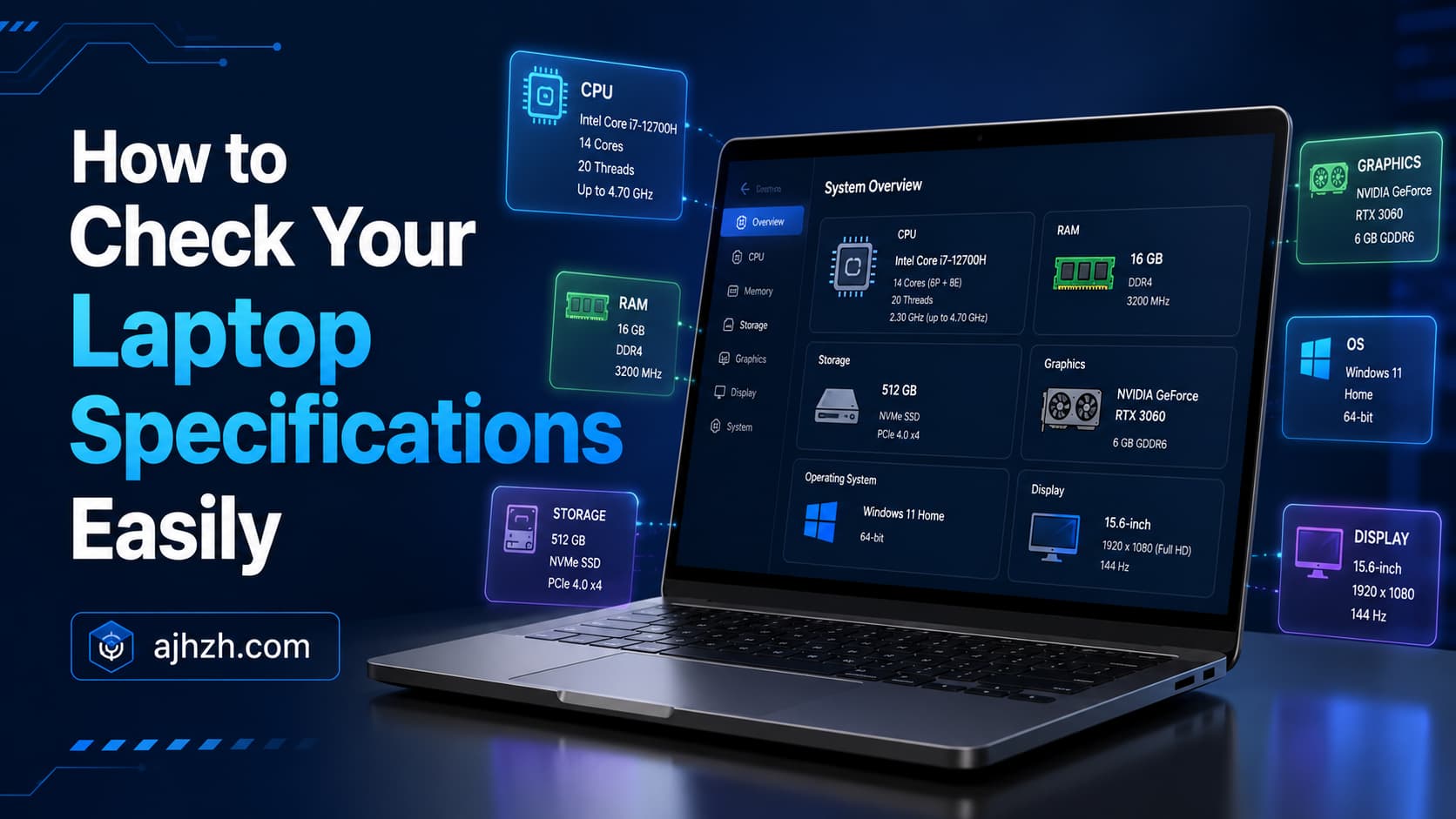
Knowing your laptop specifications is more useful than many people think. Whether you want to install new software, upgrade your RAM, check game requirements, troubleshoot performance issues, or sell your device, your laptop specs tell you exactly what your machine can handle.
The good news is that you do not need to be a technician to find this information. Most laptops already include built-in tools that show the processor, RAM, storage, graphics card, Windows version, model number, and other important details.
In this guide from ajhzh.com, you will learn how to check your laptop specifications easily using simple methods on Windows and macOS.
What Are Laptop Specifications?
Laptop specifications are the technical details that describe your device’s hardware and software. These details help you understand the performance, compatibility, and upgrade options of your laptop.
Common Laptop Specifications Include:
- Processor / CPU: The main chip responsible for performance.
- RAM: Temporary memory used for multitasking.
- Storage: HDD or SSD capacity where your files and apps are stored.
- Graphics Card / GPU: Handles visuals, gaming, design, and video rendering.
- Operating System: Windows, macOS, or Linux version.
- Laptop Model: The exact device name and model number.
- Display Details: Screen size, resolution, and refresh rate.
- Battery Information: Battery capacity and health status.
Why You Should Check Your Laptop Specifications
Checking your laptop specs can help you make better decisions before installing software, upgrading hardware, or buying accessories.
Main Reasons to Check Your Laptop Specs
- Software Compatibility
Some programs require a specific processor, RAM size, or graphics card. - Gaming Requirements
Games usually list minimum and recommended system requirements. - Performance Troubleshooting
If your laptop is slow, knowing the specs helps identify the cause. - Hardware Upgrades
You can check whether your device supports more RAM or a larger SSD. - Selling or Buying a Used Laptop
Accurate specs help you price the laptop correctly and avoid confusion.
How to Check Laptop Specifications on Windows
Windows offers several built-in methods to check laptop specs. Some methods show basic details, while others provide more advanced technical information.
Method 1: Check Laptop Specs from Windows Settings
This is the easiest method for most users.
Steps:
- Click the Start Menu.
- Open Settings.
- Go to System.
- Scroll down and click About.
- Check the information under Device specifications and Windows specifications.
What You Can See:
- Device name
- Processor
- Installed RAM
- System type
- Windows edition
- Windows version
This method is ideal if you only need basic information quickly.
Method 2: Use System Information
System Information gives you more detailed technical data about your laptop.
Steps:
- Press Windows + R.
- Type msinfo32.
- Press Enter.
- The System Information window will open.
What You Can See:
- Laptop model
- Manufacturer
- BIOS version
- Processor details
- RAM information
- Motherboard details
- System type
This is one of the best tools for checking complete laptop information without installing extra software.
Method 3: Check Specs Using Task Manager
Task Manager is useful if you want to check real-time hardware performance.
Steps:
- Press Ctrl + Shift + Esc.
- Click the Performance tab.
- Select CPU, Memory, Disk, GPU, or Wi-Fi.
What You Can See:
- CPU model and speed
- RAM usage and capacity
- SSD or HDD activity
- GPU name and usage
- Network performance
Task Manager is especially useful when your laptop feels slow and you want to see which component is under heavy load.
Method 4: Use DirectX Diagnostic Tool
The DirectX Diagnostic Tool is helpful for checking graphics and audio details.
Steps:
- Press Windows + R.
- Type dxdiag.
- Press Enter.
- Wait for the tool to load.
- Check the System, Display, and Sound tabs.
What You Can See:
- Processor
- RAM
- Windows version
- Graphics card
- Display memory
- Audio device information
This method is useful for gamers, designers, and users who need to check graphics card details.
Method 5: Check Laptop Specs Using Command Prompt
Command Prompt can show system information quickly using a simple command.
Steps:
- Open the Start Menu.
- Search for Command Prompt.
- Open it.
- Type:
systeminfo- Press Enter.
What You Can See:
- OS name
- OS version
- System manufacturer
- System model
- Processor
- Memory
- BIOS version
This method is fast and useful for users who prefer keyboard commands.
Method 6: Use PowerShell
PowerShell can display advanced system information with more flexibility.
Steps:
- Right-click the Start Menu.
- Choose Windows Terminal or PowerShell.
- Type:
Get-ComputerInfo- Press Enter.
PowerShell is helpful for advanced users, IT support, and anyone who wants detailed system data.
How to Check Laptop Specifications on macOS
If you use a MacBook, checking specifications is very simple.
Steps:
- Click the Apple menu in the top-left corner.
- Select About This Mac.
- Review the basic device information.
- Click More Info for additional details.
What You Can See:
- Mac model
- Chip or processor
- Memory
- macOS version
- Serial number
- Storage information
- Display information
For deeper details, you can also open System Settings and check General > About.
Laptop Specification Checking Methods Compared
| Method | Best For | Difficulty | Details Level |
|---|---|---|---|
| Windows Settings | Basic specs | Easy | Basic |
| System Information | Full hardware details | Easy | High |
| Task Manager | Performance monitoring | Easy | Medium |
| DirectX Diagnostic Tool | Graphics and audio details | Medium | High |
| Command Prompt | Quick system summary | Medium | Medium |
| PowerShell | Advanced system data | Medium | High |
| About This Mac | MacBook specifications | Easy | Medium |
Most Important Laptop Specs to Check
Not every specification has the same importance. Some details matter more depending on what you want to do.
Processor
The processor affects overall speed. A stronger CPU helps with multitasking, programming, video editing, design, and gaming.
RAM
RAM affects how many apps your laptop can run smoothly at the same time. For basic use, 8GB can be enough. For heavier tasks, 16GB or more is better.
Storage
An SSD is much faster than an HDD. If your laptop has an SSD, apps open faster, Windows starts quicker, and the system feels smoother.
Graphics Card
The GPU matters for gaming, 3D design, video editing, and AI-related applications. Some laptops use integrated graphics, while others include dedicated graphics cards.
Operating System
Checking your OS version is important because some apps only support certain versions of Windows or macOS.
Pros and Cons of Checking Laptop Specifications Yourself
Pros
- You can understand your laptop’s real capabilities.
- You can avoid installing unsupported software.
- You can compare your device with software or game requirements.
- You can make better upgrade decisions.
- You do not need paid tools or technical support.
Cons
- Some technical terms may look confusing at first.
- Built-in tools may not always show upgrade compatibility.
- Laptop model names can sometimes be difficult to interpret.
- Advanced hardware details may require third-party tools or manufacturer support.
When Should You Check Your Laptop Specs?
You should check your laptop specifications before:
- Installing heavy software
- Downloading a large game
- Upgrading RAM or storage
- Buying a used laptop
- Selling your current laptop
- Updating drivers
- Troubleshooting slow performance
- Comparing two laptops before purchase
Tips for Understanding Your Laptop Specs Better
Do Not Focus Only on RAM
RAM is important, but it is not the only performance factor. Processor generation, storage type, graphics card, and cooling system also matter.
Check Whether You Have SSD or HDD
If your laptop feels slow and uses an HDD, upgrading to an SSD can make a major difference.
Look at the Exact Processor Model
Do not judge a laptop only by “Core i5” or “Core i7.” The generation and model number matter a lot.
Check the GPU for Gaming or Design
If you use design software or play games, the graphics card is one of the most important specifications.
FAQ
How do I check my laptop specifications quickly?
On Windows, go to Settings > System > About. On macOS, click the Apple menu > About This Mac. These are the fastest ways to view basic laptop specs.
How can I check my laptop RAM?
On Windows, open Settings > System > About or use Task Manager > Performance > Memory. On macOS, open About This Mac.
How do I know if my laptop has SSD or HDD?
On Windows, open Task Manager, go to Performance, and select Disk. Windows usually shows whether the drive is SSD or HDD.
How do I check my laptop graphics card?
On Windows, open Task Manager > Performance > GPU or run dxdiag using the Run box. On macOS, graphics details appear in About This Mac or system information.
Can I upgrade my laptop after checking the specs?
It depends on your laptop model. Some laptops allow RAM and storage upgrades, while others have soldered components that cannot be replaced easily.
Is it safe to use third-party tools to check laptop specs?
Yes, but only use trusted tools from reputable sources. For most users, built-in Windows and macOS tools are enough.
Conclusion
Checking your laptop specifications is simple, useful, and does not require advanced technical knowledge. Whether you are using Windows or macOS, built-in tools can quickly show your processor, RAM, storage, graphics card, operating system, and model information.
For basic details, Windows Settings or About This Mac is enough. For deeper technical information, System Information, Task Manager, DirectX Diagnostic Tool, Command Prompt, and PowerShell provide more complete results.
Understanding your laptop specs helps you make smarter decisions about upgrades, software installation, gaming, performance troubleshooting, and buying or selling devices.
For more practical technology guides, laptop tips, and device-related tutorials, visit ajhzh.com.

